Showing posts with label storage. Show all posts

Monday, August 31, 2015

Going For It - 20 Tb of Hard Drives

So, I decided to go for it and bought a Western Digital EX4100 four-bay Network Attached Storage (NAS) box from Amazon. I got five 4 Tb drives, four for the NAS, one to have an exact-match inside my computer.
 
I will have to be very careful in transferring files from my current disks to the new ones. Last time I did this, I attempted to move the files inside Lightroom, to preserve the connections with the Lightroom catalog. Somewhere in the middle of data transfer, a problem occurred, and I lost some data, and the catalog became corrupt. I finished by moving the files in Windows, then reconnecting the Lightroom catalog later on. That's what I'll do again this time.
 
I think that putting the source and destination drives into the new NAS box, giving them direct connection, will increase my chances of a successful data transfer, as well.
 
I'm looking forward to having a better storage system, that will be logically configured, instead of the one I have now, which grew up over the years. This system will also have plenty of room to grow from here, but in a rational way. The new NAS should arrive tomorrow, so that I can start my gradual upgrade of systems to support all the data I'm producing through my photography.
 
DMC-365.blogspot.com


Saturday, August 29, 2015

Starting to Ruminate on a Major Computer / Software Upgrade

Oh, boy. Can't really believe I'm doing this. But, it's time to get my photo storage and processing more organized.
 
One of the reasons that I still enjoy film photography is that I like physical artifacts - in this case, negatives. I have nicely organized notebook binders for my negatives, and can find any image I want very quickly. To be fair, the digital (scanned) versions that I have in Adobe Lightroom allow me to browse very quickly to even decide which negatives I may be interested in finding again, but that's a different matter.
 
With my digital files, I also have a logical filing system, whereby when I upload from my camera (usually by sticking the memory card in the reader on the front of my computer), I make a folder that's named with a date code (for example, August 20, 2015 is "082015") followed by a brief description of what I shot. For example, if I shot birds on August 20, 2015, the folder would be called "082015_Birds." This naming system would allow me to find most things even without my Lightroom catalog.
 
So, what problem am I trying to solve? Well, first off, I shoot raw files most of the time, which means that I fill up hard disks pretty quickly. This will only get worse as I recently bought a Nikon D810, which produces enormous files.
 
Second, I want to have a real backup (second copy) of every image. I just can't get comfortable with keeping a single copy, even with RAID (redundant array of independent disk) setups. More on that later.
 
So, lots of large files and the need for 100% backup have led me to my current configuration. That is, I have a 2Tb internal drive in my PC, which serves as my primary storage for recently-shot images. This is what I upload to from my camera. It contains all of my images from 2014, and 2015 to date. Then, I have a larger (4 Tb) external drive (Western Digital), connected through USB3. That drive has two main functions - 1) it contains primary copies of all of my earlier images (before 2009 through 2013), and 2) my internal drive mentioned above is automatically backed up to this external drive. So, the external drive is sort of a mix of primary (older) files and backups (copies) of what's on my internal drive. The backups of my older files are on separate hard disks, stored in a drawer (not live).
 
All of this works, but is not very logically-configured. The configuration grew organically, and it shows.
 
So, I'm about to embark on a data storage system improvement. I know that I'll purchase a network attached storage (NAS) device, with at least four hard disk slots. My plan will be to continue to have my most recent images on a larger (4 Tb) internal drive, and have four matching 4 Tb drives in the NAS box. The NAS will not be set up in a RAID configuration, at least not officially. It will be what is called "Just a Bunch of Disks" (JBOD).
 
Here's how I'm planning to configure the NAS:
  • One drive will be dedicated to my older primary files. Backups of these files will continue to be stored on a separate drive, in a drawer (not live).
  • The second drive will be used to automatically back up the internal 4 Tb drive in my computer, which will remain my primary drive for recent files
  • The other two drives will be empty, for now.
So, why have two empty drives? Because that's my plan for the future. Namely, as my internal drive becomes full, I'll need to make a transfer. I'll take drive 2 (the backup of my internal drive) out of the NAS and put it in a drawer for long-term archive. I'll then remove the full internal drive from my computer and put it in the newly-open slot in the NAS. Next, I'll install a new internal drive, and set it up so that slot 3 in the NAS (with a new empty drive in it) is used to back up the new internal drive. I'll be able to continue this through two more iterations before my NAS becomes full. That should be quite a while.
 
I hope this makes sense. I have just decided on how I want it set up, and believe it's safer than any other RAID configuration I've come up with.
 
If one of the disks containing my older files were to fail, I'd just pull a backup drive out of the drawer. If my internal drive (with primary copy of my newest files) fails, I'll have a live backup in the NAS. The only way to lose recent data would be if my internal drive, and the NAS backup were to fail at the same time. That could happen, I suppose (e.g. a fire in my office), but it's pretty unlikely. I also like that the two copies of my recent files will be in two different boxes (one in my computer, one in the NAS). I've had a drive controller fail and ruin two copies at once in the past, and I lost data.
 
I would love to have a way to automatically upload jpeg copies of my images to a cloud storage system. I haven't figured that out yet. I have unlimited storage on flickr, but uploading is a manual and slow process. I'll work that out after setting up my local gear.
 
So, I'll work on cleaning up my data storage first.
 
Next, I'll work on improving my computer speed, as it's pretty darned slow running Lightroom. I'm strongly considering changing from my home copy of Lightroom to using Adobe's new Creative Cloud, which is a subscription model that will get me access to Lightroom and Photoshop for $10 per month. I will also likely need to upgrade my computer, internal memory, and graphics handling, but that all comes later, once my files are in order.
 
DMC-365.blogspot.com
 

Friday, September 26, 2014

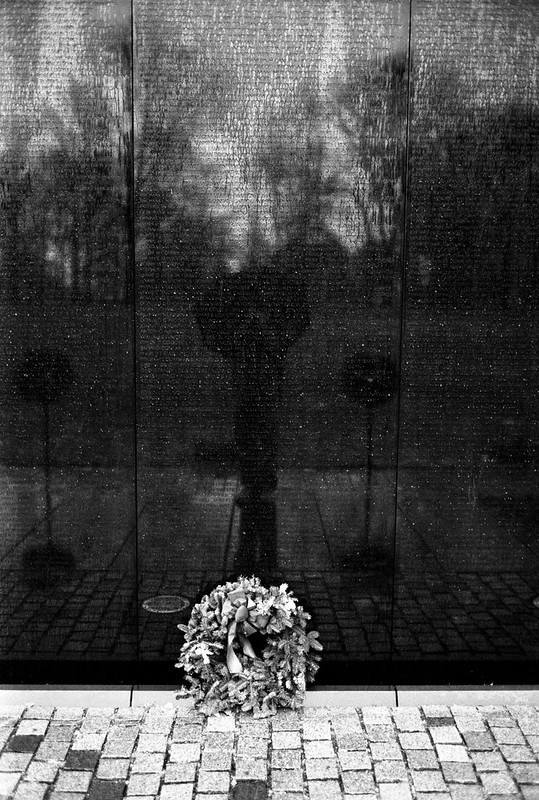
Tangible Artifacts of the Photographic Process

 
Vietnam Memorial
Leica M4-2, Leica Summicron 35mm f2 v.3 Lens
Kodak TMax 400 Black and White Negative Film
 
One item of some debate at the Magnum workshop was whether or not an image really exists before it is printed on real paper. Magnum legend Costa Manos maintains that the print is a necessary component, that you really don't have an image until you have a print. And his prints are spectacularly made, with such care that you can identify with his point.
 
Not everyone agrees, but no one argues that a fine physical print is a worthy object; it's just a question of whether it's always necessary.
 
Having shot only digital for a full week, I find myself wondering whether one could make the same argument about the negative (or transparency) being a necessary artifact. In fact, this did come up during one of the public talks, where there was some disagreement about whether you'd grab your hard drive on the way out in the event of your house catching fire, as people have done with their family pictures and negatives for many years. I think I would. Or, to argue against the need for a physical negative, perhaps having all of my images backed up to the cloud obviates the need to grab anything on the way out.
 
A final thought is that I have actually lost images in a most unfortunate simultaneous crash of two hard disks (copies of each other). But, I suppose I have also lost most of my earliest negatives, which were shot before I got smart and developed an organized filing system. Those negatives were really lost in the carelessness of youth, not as a result of the medium on which they were stored.
 
So, what do you think? Must it exist in physical form to be a real photograph?
 
DMC-365.blogspot.com


Monday, December 9, 2013

Backing Up Files on iPad - One Step Closer - My Travel Backup System

 
Pogoplug Series 4 Sharing Device
Image Source: http://www.adorama.com/COCPOGOV4A3.html?EmailPrice=T


I've gone through several devices looking for the best way to backup files during travel with my Apple iPad (not requiring me to carry a laptop computer). I was looking for a way to backup raw files and jpegs, even when I may not have access to the internet. I tried multiple wireless hard disks that were advertised as having the ability to move files from the iPad; none of them worked.
 
What I've been doing in the face of this failure is basically making sure I have two copies of every file in a very basic way. I always carry enough SD cards that I don't have to format them during my travel. After filling one up (or after a day of shooting), I use the Apple Camera Connect kit to plug the SD into the iPad and transfer files. This gives me tens of Gigabytes of backup, and the iPad automatically moves both raw and jpeg files. Then, I put the SD away in a different case, so that I remember it's full. Now I have one copy on the SD, and one on the iPad, without the need for an internet connection.
 
Once I'm connected to the internet again, I can upload files to flickr, but that's pretty darned slow in my experience. That's where this little beauty comes in. The Pogoplug is a network file sharing device that you plug in to your network at home. Then, you connect storage to it - this can be anything from an SD card, to a USB hard drive (USB3 that is), or directly connect a hard drive that has the 2.5" SATA interface. I had a 1Tb Iomega USB drive that I connected for now. It gives you a dedicated connection, which makes it much faster than uploading to flickr.
 
So, once you've got that going, you download the Pogoplug app for the iPad (from the Apple App Store). It's free. You can set it up so that anytime you're connected to the internet and the app is open (yes, it must be open), the system will automatically backup your jpeg files from your iPad Camera Roll to the hard drive at home, no matter where you are. This is handy, especially if you use a wifi-enabled camera (like my Panasonic Lumix DMC-GX7 or Lumix DMC-TS5) to upload to the iPad. Then it's all seamless.
 
Here's the limitation - both Lumix wifi and Pogoplug are limited to only jpegs - they won't upload raw files.
 
So, my workaround (assuming I need to backup raw files) is this - I don't use wifi to transfer from the camera to the iPad, but use the Apple Camera Connect as stated above to get a second copy of my jpegs and raw files onto the iPad. Then, the Pogoplug app requires that I go in and select the images in my Imported folder on the iPad for upload to the disk at home. Easy, and quite fast. It will be even faster when I get a dedicated hard drive directly connected to the Pogoplug.
 
So, what does this give me? Two copies of all files, and a third of the jpegs only:
 
  1. The original raw and jpeg files stored on the SD card I used in the camera.
  2. Second copies of both raw and jpeg files imported to the iPad (using the Apple Camera Connect kit).
  3. Third copies of jpegs only backed up on the Pogoplug hard drive at home. These would save me if I dropped my camera bag and iPad into the ocean or something.
This means I have to carry a lot of SD cards, but they're small, lightweight, highly reliable, and relatively low cost.
 
I don't like that the Pogoplug app will only copy jpegs, but the silver lining is that upload of jpegs is very fast. Maybe they'll add raw capability in a firmware upgrade. Wouldn't that be great?
 
The Pogoplug adapter is very inexpensive. Purchase yours at the link below.
 
DMC-365.blogspot.com


Wednesday, November 21, 2012

Are We Almost There? With Unobtrusive Wireless Backup, That Is?

The iPad (2, in my case) has become a major part of my life, even though I'm an Apple curmudgeon in general. And, as you may know, I still have a love for cameras that don't need a battery. But, the iPad is dragging me, kicking and screaming, into this millenium.
 
I am committed to using the iPad as backup and viewing of my photos on travel. Right now, I use the Apple SD adapter, and get a second copy onto the iPad as soon as possible after shooting. However, I typically keep the original copy on my SD card, which means having a lot of SD cards with me. So far, uploading the files to the web is too slow to be a useful third copy. Or, wireless connection in hotels is spotty enough to make it really hard. And, my iPad only has 64Gb total storage, which includes all of my business apps and work.
 
I've been looking at wireless hard drives, like the the Seagate GoFlex, which is essentially a wifi-capable mechanical hard drive.
 
(Click Here) to see the GoFlex on Amazon.
 
I've read some mixed reviews of how it works, so have not pulled the trigger.
 
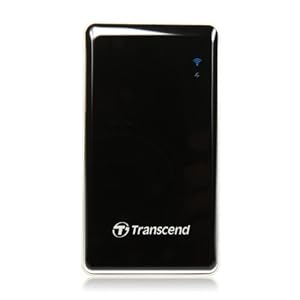
Now, this morning, I saw my first solid state (as in "no moving parts") wireless hard drive, the Transcend StoreJet Cloud:
Image Source: http://www.amazon.com/Transcend-TS64GSJC10K-Information-Storejet-Cloud/dp/B006L42TL2/ref=sr_1_2?ie=UTF8&qid=1352461300&sr=8-2&keywords=storejet+cloud
 
The storage capacity isn't huge (64 Gb), but not bad, either. This device is marketed for use in taking all of your music and videos with you when you travel. I want to turn it around, and use it to back-up the photos I take while I'm out. I need a demo to convince me that's possible.
 
(Click Here) to see the Storejet Cloud on Amazon
 
The process I'm considering at this point is to continue to use the Apple card adapter to transfer images from my SD card to the iPad, then back it up wirelessly to something like the Storejet Cloud.
 
Then, I see this:
 
Image Source: ephotozine.com
 
(Click Here) to read about the card on ephotozine.com.
 
This is a Wi-Fi enabled SD card, which is designed specifically for use with iPad (iOS) or Android devices. If it works as I envision, I can upload directly to the iPad without the Apple adapter. I'm sure it will be slower, but it even has a mode where it will do it as I'm shooting. Now, if that ever negatively affected my shooting, it would be turned off forever. But, think how great it would be to have a backup of everything you shoot being made as you shoot, through a direct wireless connection between your camera's SD card and the iPad in your camera bag. That would be cool.
 
I don't know if it works that way.
 
Also, one more question - if I bought the StoreJet Cloud and the Wi-Fi SD, could I have the card make copies to both the iPad and the wireless hard drive at the same time? Ideally, I could save a jpeg version to my iPad, and both raw and jpeg to the hard drive.
 
Tough customer, aren't I? If this worked, I'd buy both the card and hard drive today. I think the chances of all the integration points working is very slim.
 
Note to Transcend: You now have all the pieces. Make it happen for me.
 
DMC-365.blogspot.com