Showing posts with label app. Show all posts

Sunday, July 5, 2015

Did You Get a Release for That?

Model releases can be very important for certain types of photography. I didn't get a release for this shot, as I'm not inclined to sue myself for posting a picture of my kid. But, you get the point.
 
I've actually been waiting to see an iPhone app that takes care of model releases for the mobile photographer. And, it's here. This app from Snapwire not only allows you to get signatures on the fly, on your phone, it integrates with several other applications, including Dropbox and Evernote (my choice of document organization tools).
 
(Click Here) to read about the app on DIYPhotography.net
 
 
DMC-365.blogspot.com


Monday, December 9, 2013

Backing Up Files on iPad - One Step Closer - My Travel Backup System

 
Pogoplug Series 4 Sharing Device
Image Source: http://www.adorama.com/COCPOGOV4A3.html?EmailPrice=T


I've gone through several devices looking for the best way to backup files during travel with my Apple iPad (not requiring me to carry a laptop computer). I was looking for a way to backup raw files and jpegs, even when I may not have access to the internet. I tried multiple wireless hard disks that were advertised as having the ability to move files from the iPad; none of them worked.
 
What I've been doing in the face of this failure is basically making sure I have two copies of every file in a very basic way. I always carry enough SD cards that I don't have to format them during my travel. After filling one up (or after a day of shooting), I use the Apple Camera Connect kit to plug the SD into the iPad and transfer files. This gives me tens of Gigabytes of backup, and the iPad automatically moves both raw and jpeg files. Then, I put the SD away in a different case, so that I remember it's full. Now I have one copy on the SD, and one on the iPad, without the need for an internet connection.
 
Once I'm connected to the internet again, I can upload files to flickr, but that's pretty darned slow in my experience. That's where this little beauty comes in. The Pogoplug is a network file sharing device that you plug in to your network at home. Then, you connect storage to it - this can be anything from an SD card, to a USB hard drive (USB3 that is), or directly connect a hard drive that has the 2.5" SATA interface. I had a 1Tb Iomega USB drive that I connected for now. It gives you a dedicated connection, which makes it much faster than uploading to flickr.
 
So, once you've got that going, you download the Pogoplug app for the iPad (from the Apple App Store). It's free. You can set it up so that anytime you're connected to the internet and the app is open (yes, it must be open), the system will automatically backup your jpeg files from your iPad Camera Roll to the hard drive at home, no matter where you are. This is handy, especially if you use a wifi-enabled camera (like my Panasonic Lumix DMC-GX7 or Lumix DMC-TS5) to upload to the iPad. Then it's all seamless.
 
Here's the limitation - both Lumix wifi and Pogoplug are limited to only jpegs - they won't upload raw files.
 
So, my workaround (assuming I need to backup raw files) is this - I don't use wifi to transfer from the camera to the iPad, but use the Apple Camera Connect as stated above to get a second copy of my jpegs and raw files onto the iPad. Then, the Pogoplug app requires that I go in and select the images in my Imported folder on the iPad for upload to the disk at home. Easy, and quite fast. It will be even faster when I get a dedicated hard drive directly connected to the Pogoplug.
 
So, what does this give me? Two copies of all files, and a third of the jpegs only:
 
  1. The original raw and jpeg files stored on the SD card I used in the camera.
  2. Second copies of both raw and jpeg files imported to the iPad (using the Apple Camera Connect kit).
  3. Third copies of jpegs only backed up on the Pogoplug hard drive at home. These would save me if I dropped my camera bag and iPad into the ocean or something.
This means I have to carry a lot of SD cards, but they're small, lightweight, highly reliable, and relatively low cost.
 
I don't like that the Pogoplug app will only copy jpegs, but the silver lining is that upload of jpegs is very fast. Maybe they'll add raw capability in a firmware upgrade. Wouldn't that be great?
 
The Pogoplug adapter is very inexpensive. Purchase yours at the link below.
 
DMC-365.blogspot.com


Saturday, June 29, 2013

Over - A Nice App For Adding Text to Images on iPad

 
Just Playing Around
 
You know how Starbucks has those little cards giving away a free App or song each week? This week's App in my local store is called "Over." Over is an image editing program, which allows you to add text or art to your pictures. Pretty darned cool.
 
I downloaded Over from the App store, and played around a little with it, just using images that were already on my iPad. This is a very simple way to add text to your images. I'm thinking of making electronic postcards from your beach vacation, for example. Here's a hint: once you've added text and hit "Done," use the yellow arrow on the right of the screen to find options for how to modify it. The options that come up are on a wheel, which you can spin for more options. I'm sure this doesn't make sense, but it will once you open the App. Finding the wheel is necessary to be able to save your image, for example.
 
Here's another image I played around with:
 
Could Be Useful
 
Hmm. No bad for the price (free).
 
DMC-365.blogspot.com


Friday, November 30, 2012

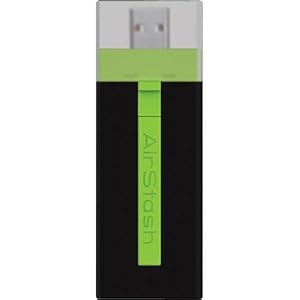
More Unfulfilled Promise - the Maxell Airstash

 
Maxell Airstash
Image Source: http://www.amazon.com/Maxell-AirStash-Expandable-Capacity-Wireless/dp/B006473T92/ref=sr_1_2?ie=UTF8&qid=1354189519&sr=8-2&keywords=maxell+airstash
 
So close, but yet so far. Let me save you some reading if you like: AIRSTASH DOES NOT ALLOW TRANSFER OF RAW FILES FROM THE IPAD.
 
My Airstash arrived yesterday, and after a few blips in upgrading the firmware, was ready to go. Very promising. The app (Airstash+) actually has a simple interface. Click the little camera icon, and you can say whether you want to import (from Airstash to iPad) or export (to the Airstash), select your images, and go. So, I did a test with ~250 images stored on the iPad (in both jpeg and raw) during a meeting. I was elated. Within 40 minutes it was done. So cool!
 
The transfer rate was not fast, but certainly acceptable. The devise design is nice - it's very small, light, not much more in your bag than a normal SD card - USB adapter.
 
Then came the final part of the test. Plugging the Airstash into my desktop, I looked at my transferred images. What? No raw files! Just jpegs. The transfer changed all of my raws into jpegs.
 
I thought there must be a setting that I missed. There isn't. In fact, there are so few settings that I scanned all of them three times in a few minutes. So, reluctantly, I called the 24/7 Maxell service line.
 
After a several minute hold, I got a real person. He immediately told me that I'd have to do some internet research, and that this functionality was on the app end, which is produced by a third party. I replied that I had read the MAXELL web page extremely carefully before making this purchase, and that it clearly indicated compatibility with raw files. After pushing back, he agreed to talk with someone else there at Maxell. He came back on the phone after consulting with the Airstash Support Manager, and informed me that the software automatically converts raw files to jpeg upon export to the Airstash. There is nothing you can do to change that. I calmly informed him that this "feature" makes the device completely unhelpful to serious photographers, and it's on its way back. He said "Okay, thank you!" and we were done.
 
A couple of you have suggested divorcing from Apple for this function. I'm afraid I may have to agree with you. I'm so hooked on the iPad interface and apps for other purposes, it is difficult to consider something else. But, it just won't seem to help me out here.
 
I thought Apple's strongest core of users came from the arts, science, and imaging worlds. How can they not see the need to give this to us photographers?
 
I'm going to take a break from this pursuit for a while. I'm not doing any more big travel until spring...
 
DMC-365.blogspot.com


Well, the Seagate Go Flex Didn't Solve My iPad Photo Back-Up Challenge, Maybe The Maxell Airstash Will...

 
The Maxell Airstash
Image Source: http://www.amazon.com/Maxell-AirStash-Expandable-Capacity-Wireless/dp/B006473T92/ref=sr_1_2?ie=UTF8&qid=1354189519&sr=8-2&keywords=maxell+airstash
 
As I mentioned yesterday, the promising combination of the PhotoSmith app and the Seagate Go Flex wireless hard drive let me down, in that they no longer allow you to write files from the iPad to the drive. This is obviously critical for the iPad to be a great back-up tool for photographers.
 
Here's my next attempt - the Maxell Airstash. This is a different approach, which allows you to connect an SD card to your iPad wirelessly. The description clearly states that the iPad will write files to the SD card. I sure hope it's true.
 
With the Airstash, my plan will be to carry a lot of SD cards of matched size. I'll shoot with one in my camera, then use the iPad to copy all of the files to both the iPad and to a second SD card. That's significant back-up (three copies).
 
Here's some of the pluses of this approach:
  • Solid State (SD Card) media
  • No moving parts
  • Fast read and write speeds
  • Easy to carry a lot of data in the form of SD cards
  • Does not rely on using the PhotoSmith app, which I have found to be less than 100% reliable
  • Easy to upload when I do get home. Just grab one copy on SD card and pop it in the desktop card reader.
Here are some negatives:
  • Solid State (SD Card) media - low storage capacity (per card) compared to the 500 Mb Go Flex
  • Wireless - I would be happier if I simply had the ability to write to an SD card from the iPad, using the Apple Camera Connect Kit. It would be faster. I simply don't need wireless for this application. However, I may use it for other things in the future.
  • Internal rechargeable battery - will have a limited lifetime. I wouldn't mind plugging in to AC, or better yet, have it powered from a USB connection.
  • Since you can't easily delete photos from the iPad without connecting to a host computer, I'm still limited in overall capacity to what's on the iPad (64 Gb max).
I'm returning the Go Flex, and have ordered the Airstash. I'll let you know how it goes. If this doesn't work, I will seriously consider the Macbook Air with 256 Gb storage. I'd still much rather have the iPad be my solution.
Let's hope the Airstash lives up to the marketing info.
 
 
DMC-365.blogspot.com


Monday, May 7, 2012

On Culling Your Images - by Guest Contributor Lara White on digitall-photography-school.com

 
dessert table closeup.jpg
 
Image Source:
http://digital-photography-school.com/wp-content/uploads/2012/04/dessert-table-closeup.jpg
 
Guest Contributor Lara White wrote a nice piece on digital-photography-school.com about the merits of not only editing and evaluating your images, but actually selecting the best and deleting the rest.


(Click Here) to read the original article on digital-photography-school.com


Lara suggests that we should "be ruthless" in deciding which images to keep, and which to throw away. She makes several points regarding why this is a good practice, including that making decisions makes us learn what's right and wrong with each image, that it allows our truly great shots to stand out without being surrounded by average ones, and that over time it teaches us which perspectives and compositions work.


I found Lara's examples - a ho-hum shot of a dessert table, and a smashing closeup of a single dessert (image above) useful. I think it reinforces the idea that simple is better, and reminds me of one of my own faults - trying to tell the whole story in one picture. Sometimes that's just not effective, or even possible.


There is one other benefit to ruthlessly deleting everything but our best work, and that is storage space (and associated access time). Not only do hard drives fill up fast, it takes a finite amount of effort to find those best shots again, when they're surrounded by marginal ones in the directory. Yes, Lightroom's flags and selection tools make this easier, but it can never be easier than not having the clutter there in the first place.


The only downside I can see is that we may inadvertently delete images that will become important to us later. I think that's pretty rare.


Something good to consider when thinking about your workflow.


DMC-365.blogspot.com


Tuesday, April 10, 2012

Manipulated Images - "Grunged Japan" by Reed A. George

I warned you - this post contains manipulated images. I just arrived home from Japan. For most of my trip, I had weak or no internet connection, so you can expect to see several posts about Japan now that I'm back and reconnected. On the airplane ride home, I experimented with some fun manipulations of Lumix images I took on the trip, using an iPad app called Snapseed.
 
(Click Here) to find out more about Snapseed.
 
Here are some examples:
 
Grunged Japan #1, by Reed A. George
 
 
Grunged Japan #2, by Reed A. George
 
 
Grunged Japan #3, by Reed A. George

Grunged Japan #4, by Reed A. George

Grunged Japan #5, by Reed A. George

 
Grunged Japan #6, by Reed A. George
 
Now I know these are not my normal images. That's the point. I wanted to do something a little different. Snapseed was just the ticket to accomplish that. I've used a pretty stochastic approach to these, and didn't follow any recipe. They include combinations of "Vintage Film," "Organic Frames," "Center Focus," and "Grunge" (hence the name of the series).
 
They are so manipulated, I think it suffices to say that all are Lumix photographs, taken with either a DMC-G3 or DMC-TS3.
 
Grunged Japan #7, by Reed A. George
 
I hope you don't mind indulging a little break from my normal style with me. I wouldn't want to use these effects every day, but they were a nice little diversion on the flight home.
 
Let me know what you think!
 
DMC-365.blogspot.com
 
Help Support My Blog By Ordering All of Your Amazon Products Here: